AI Document Automation: Invoices, Forms and Emails


Web Design and Development

- 13 Nov, 2026
- 4 Views
- 0 Comment
By the LaunchLen Web Solutions Team · Last updated: November 13, 2026
An email address at your own domain looks more professional than a free address, and it keeps business mail under your business name. Setting it up is mostly a matter of choosing a provider and adding a few DNS records correctly.
This guide covers how to set up business email on your own domain, step by step, without tying you to a particular provider. If you’re still deciding which office suite to use, our post on how we help teams choose an office suite covers that choice.
Before you set up business email: domain, provider and access
You’ll need three things in place:
- A domain in your business’s name. MDN has a plain explainer on how domain names work, and ICANN explains how registration works.
- Access to your DNS settings. These usually live with your domain registrar or your website host.
- An email provider. Common types are an office suite that includes email, email bundled with web hosting, or a standalone email service.
When comparing providers, look at mailbox storage, admin tools, the apps your team already uses and how they help you move existing mail. If you’re also reviewing your website host, see our guide on how to choose web hosting.
Step one: choose your address format
Pick one format for people and stick to it, such as first name only or first name and last name with a dot.
Then decide on role addresses, like info, sales or support. These can be shared mailboxes or aliases that deliver to the right people. Role addresses keep working when staff change, which personal addresses don’t.
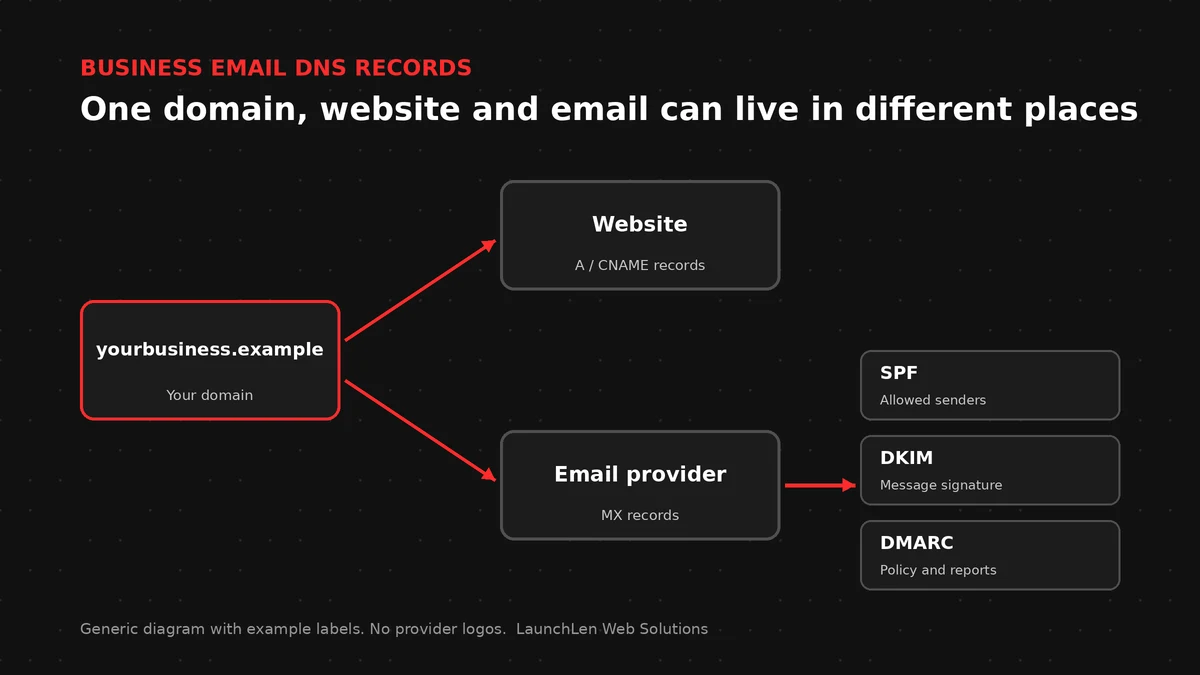
Step two: add the DNS records email needs
Your provider will give you the exact values. Here’s what each record does.
MX records
MX records tell other mail servers where to deliver email for your domain. The SMTP standard describes how sending servers look these records up. Only your current provider’s MX records should be in place, so old ones need removing when you switch.
SPF
An SPF record lists the servers allowed to send email for your domain. A domain should have only one SPF record, so if several services send mail as you, such as your website forms or newsletter tool, they all go into that one record.
DKIM
DKIM adds a signature to outgoing email that receiving servers can check against a public key in your DNS. Your provider generates the key and tells you which record to add.
DMARC
A DMARC record tells receiving servers what to do when a message fails the SPF and DKIM checks, and where to send reports. Many teams start with a monitoring-only policy, review the reports, then tighten it later.
Together, these records tell receiving mail services which servers send email for your domain and how to handle messages that fail the checks. DNS changes can take a while to spread, so allow time before testing.
Step three: create users, shared mailboxes and aliases
Next, add a mailbox for each person, then set up the shared mailboxes and aliases you planned. Give admin access to more than one trusted person, so the account isn’t stuck with a single login.
Step four: connect devices and test
Connect each person’s computer and phone using your provider’s setup guide. Then test:
- Send email to and from an outside address.
- Check that replies arrive where you expect.
- Submit your website contact form and confirm the message lands.
- Look at a received message’s details to confirm SPF and DKIM passed.
Common setup mistakes
A few problems come up often:
- Two SPF records instead of one combined record.
- Forgetting that your website or invoicing tool also sends email as your domain.
- Old MX records left in place after a switch.
- A domain registered in a former employee’s or agency’s name.
If you already have mailboxes with another provider, moving them is its own project. Plan the move before you change MX records. Our cloud migration checklist shows the same plan, test and switch approach for websites.
FAQ
Can I use my website domain for business email?
Yes. Your website and email can share a domain, even with different providers, because MX records send email somewhere separate from your website.
Do I need SPF, DKIM and DMARC?
They’re standard parts of business email setup today, and many receiving mail services check them. Your provider’s setup guide gives you the exact records to add.
Will changing MX records affect my website?
Not by itself. MX records only control where email is delivered. Changing other records, like the ones that point your domain to your website, can affect the site, so change only what you need.
Let’s work together on your project
Want help setting up or moving your business email? We’re LaunchLen Web Solutions Inc.
Serving local businesses across Canada and the US, delivered remotely.
We guide your team or IT contact through setting up business email on your own domain, plan moves between providers and can help with management afterwards. Ongoing email management is agreed per project, so you know what’s covered. Our Cloud Services page covers hosting, domains and SSL for business websites.
Book a free consultation to get started.

DROP US A LINE
Connect with LaunchLen Web Solutions Inc.
Ready to take the first step towards unlocking opportunities, realizing goals, and embracing innovation? We're here and eager to connect.

To More Inquiry
+1 226 899 4813

To Send Mail